Autocomplete
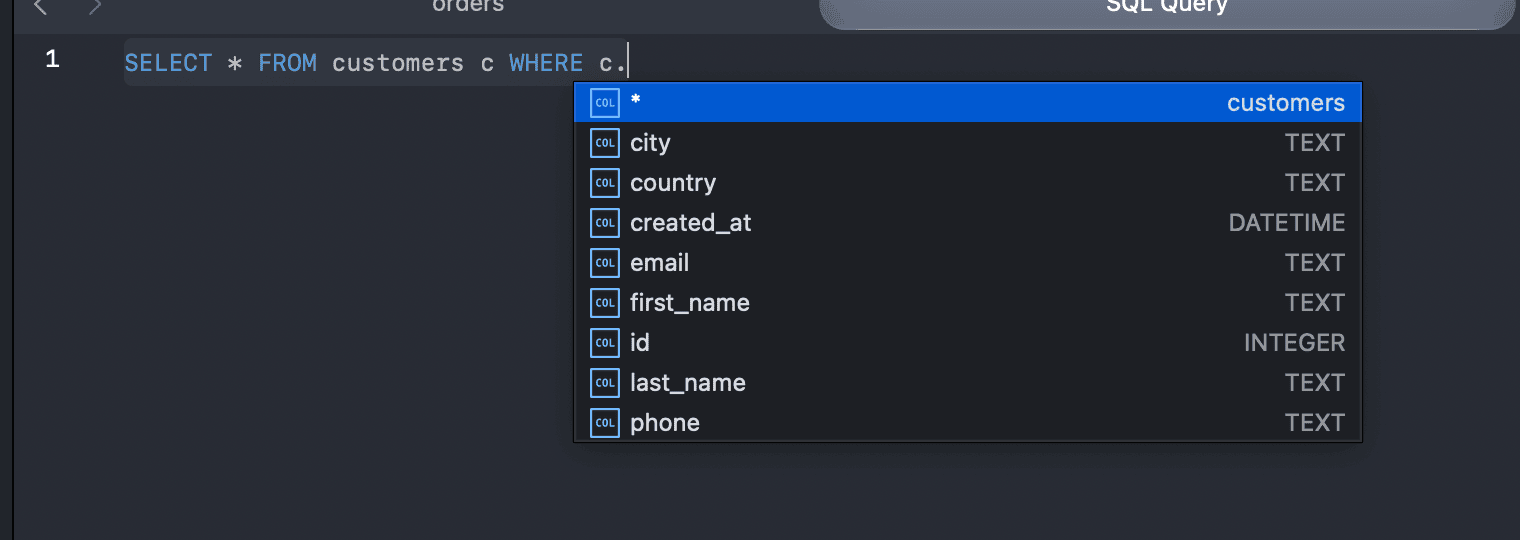
The SQL editor suggests completions as you type: databases, tables, views, columns, functions, procedures and SQL keywords, plus the keywords you bind to saved queries. For MongoDB connections in Mongo Shell syntax, it suggests collections and shell methods.
Use the arrow keys to move through the list and press Return or Tab to accept a suggestion. Press Esc to close the list.
Autocomplete options
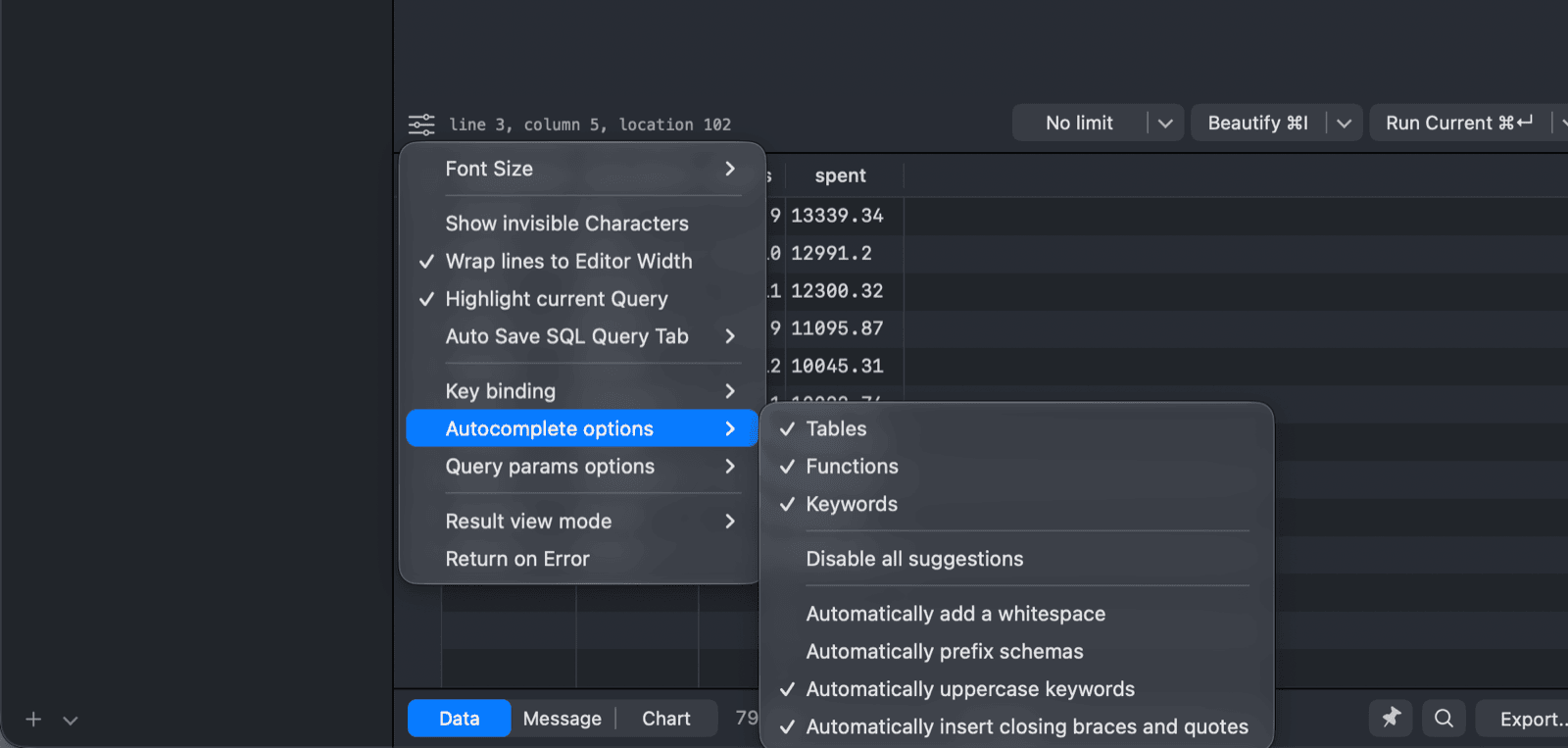
Click the SQL Editor settings button (gear icon) at the bottom left of the editor and open Autocomplete options:
| Option | What it does |
|---|---|
| Tables | Suggest tables and views. |
| Functions | Suggest functions. |
| Keywords | Suggest SQL keywords. |
| Disable all suggestions | Turn autocomplete off. |
| Automatically add a whitespace | Add a space after the inserted suggestion. |
| Automatically prefix schemas | Insert table names with their schema, for example public.customers. |
| Automatically uppercase keywords | Insert keywords in uppercase. |
| Automatically insert closing braces and quotes | Add the closing bracket or quote when you type an opening one. |
Change the completion key
By default, both Return and Tab accept a suggestion. To use only one of them, open Preferences > Editor and change Complete Key to Enter or Tab. Uppercase keywords and closing braces can also be changed there. See SQL Editor preferences.1
-
On Windows and Linux, open Preferences with
Ctrl + ,. ↩︎