Split Results into Tabs
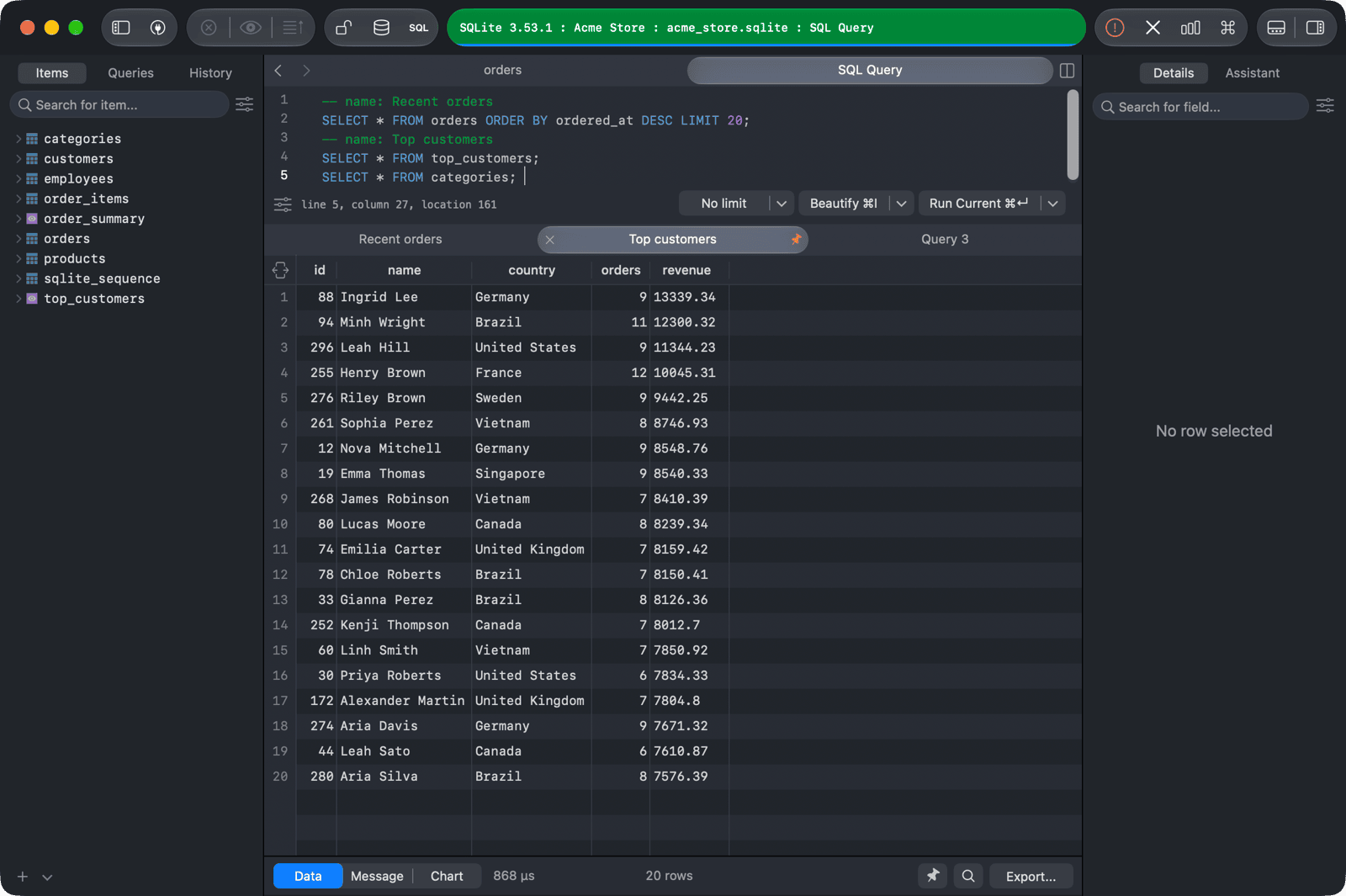
When you run several statements at once, TablePlus shows each result set in its own result tab below the editor: Query 1, Query 2, and so on. Up to 100 result tabs are shown for one run.
Name a result tab
To give a result tab a name instead of Query 1, put a comment with name, label or tab right above the statement:
-- name: Recent orders
SELECT * FROM orders ORDER BY ordered_at DESC LIMIT 20;

-- name: Top customers
SELECT * FROM top_customers;
Pin a result tab
When you run queries again, TablePlus replaces the previous result tabs. To keep a result, click the pin button on its result bar. Pinned result tabs stay until you unpin or close them.
Show all results in one tab
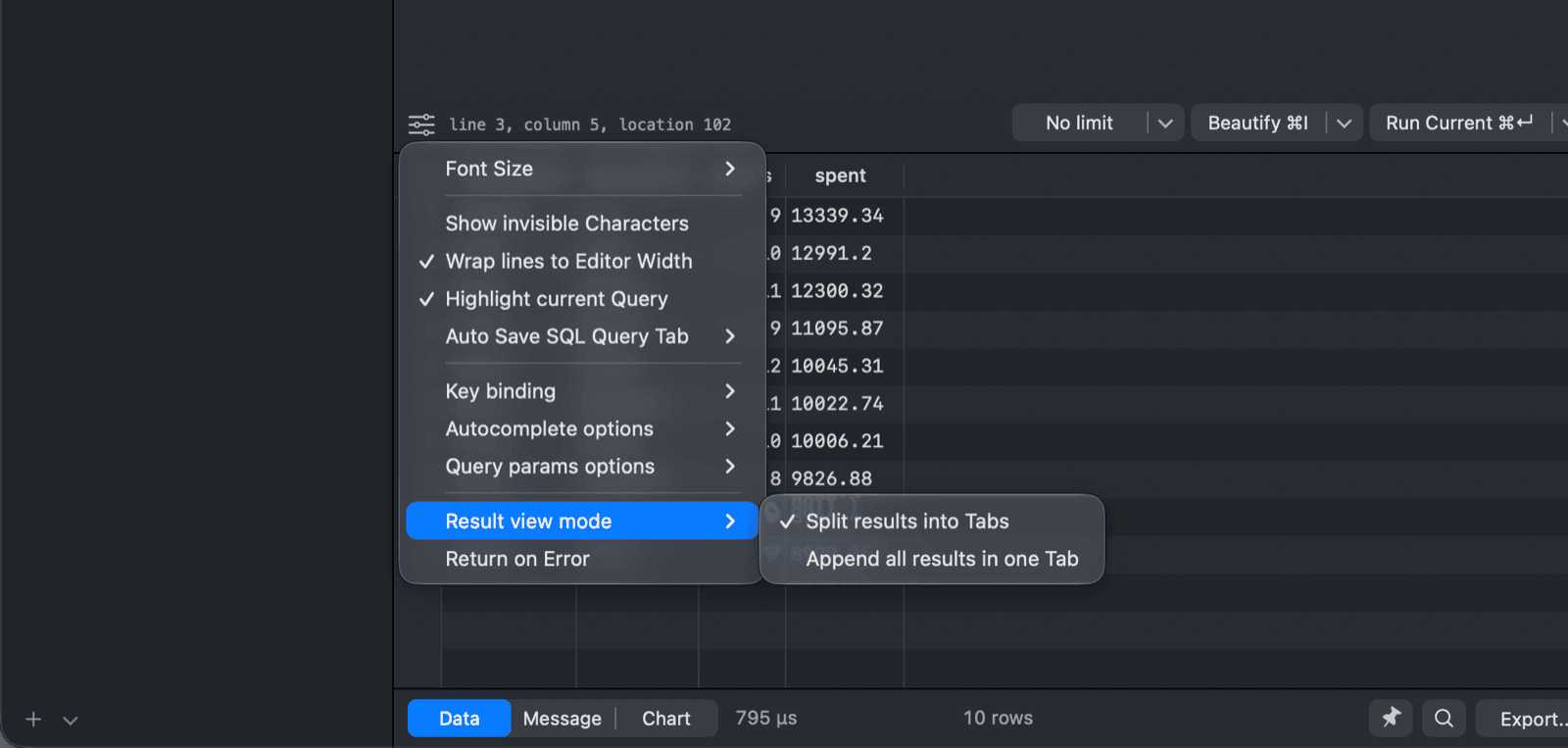
To show all results in a single tab instead, click the SQL Editor settings button (gear icon) at the bottom left of the editor and choose Result view mode > Append all results in one Tab. Choose Split results into Tabs to go back to the default.
Stop on the first error
By default, when you run several statements and one fails, TablePlus reports the error and continues with the next statements. To stop at the first error instead, turn on Return on Error in the same settings menu.