Query History
TablePlus keeps a history of the statements you send to the database for each connection. Open the History tab at the top of the left sidebar to see it.
The history includes:
- the queries you run in the SQL editor
- the statements TablePlus generates when you commit changes made in the GUI, such as editing rows or altering a table
- the statements run by User Management
Use the search field in the tab to find a query.
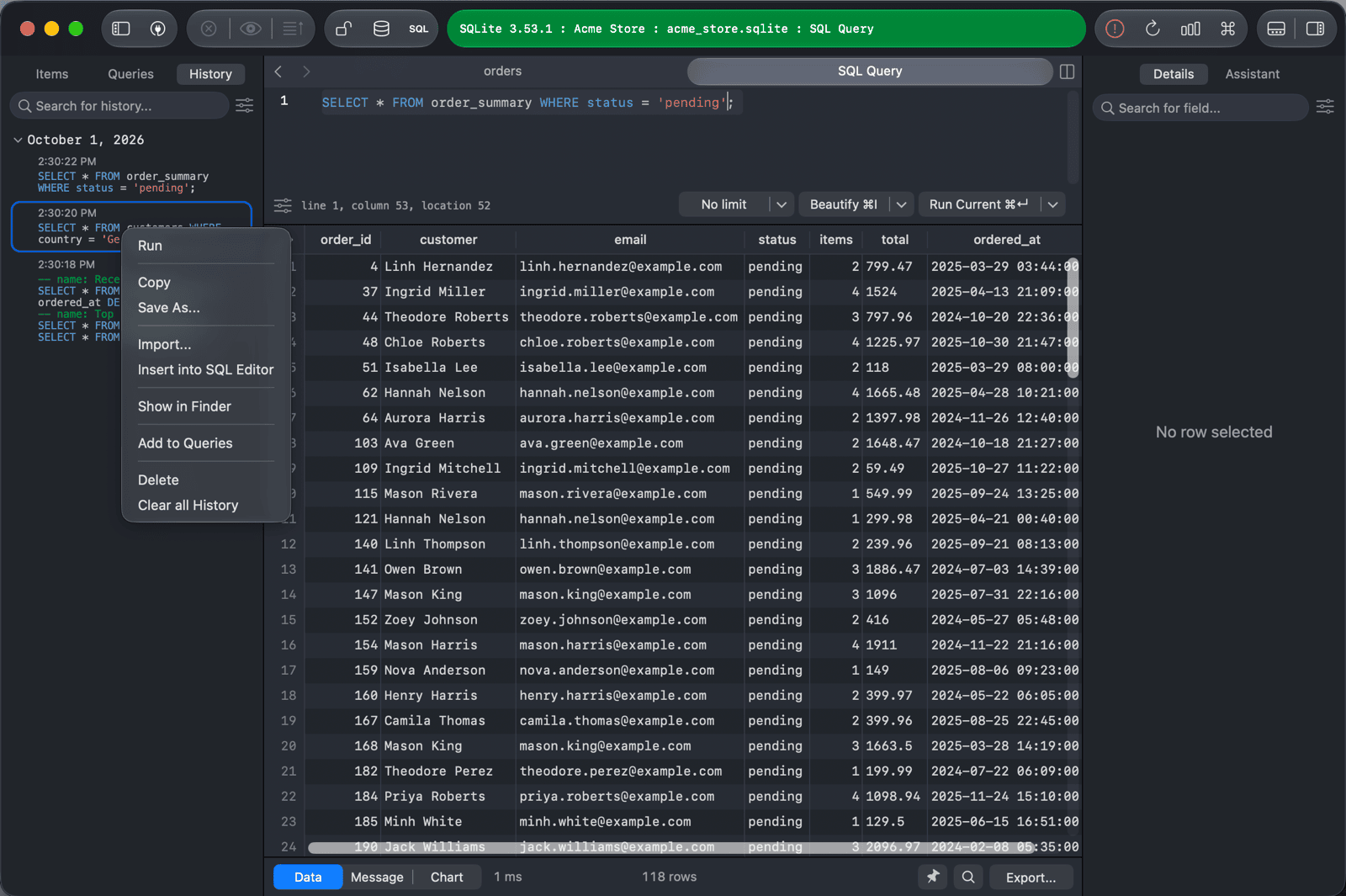
Reuse a query from the history
Double-click a query to insert it into a new SQL editor tab.
Right-click a query for more options:
| Option | What it does |
|---|---|
| Run | Opens the query in a new tab and runs it. |
| Copy | Copies the query to the clipboard. |
| Save As... | Saves the query to a .sql file. |
| Import... | Runs the query with the Import SQL Wizard. |
| Insert into SQL Editor | Inserts the query into a new SQL editor tab. |
| Show in Finder | Shows the history file in Finder. |
| Add to Queries | Saves the query to your saved queries. |
Log original values
To keep a record of the data you change, click the settings button at the bottom of the History tab and turn on Log original values when updating or deleting data. When you commit an update or a delete, TablePlus then also logs the original values of the affected rows (as CSV) in the history, next to the statements.
Delete history
- To delete a query, right-click it and choose Delete, or select it and press
Delete. - To clear the whole history of the connection, right-click a query and choose Clear all History.