Customize Query Editor
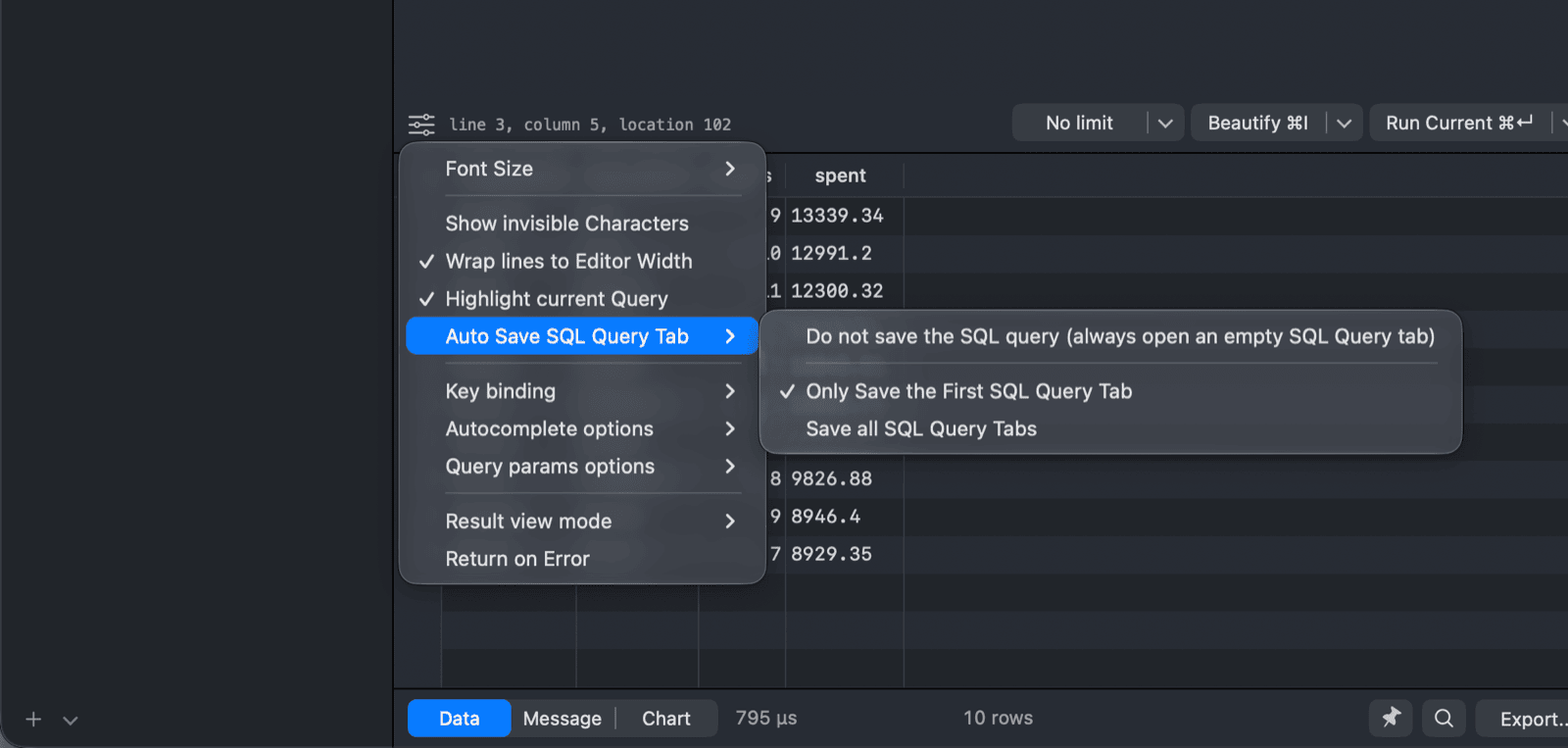
Most SQL editor options are in the SQL Editor settings menu: click the gear button at the bottom left of the editor. More options are in Preferences (⌘ + ,).1
Font size
Choose Font Size in the settings menu, or use Edit > Increase Font Size (⌘ + =) and Decrease Font Size (⌘ + -).
To change the editor font, line height and colors, open Preferences > Fonts & Themes. See Fonts & Themes.
Display options
- Show invisible Characters: show spaces, tabs and line breaks.
- Wrap lines to Editor Width: wrap long lines instead of scrolling horizontally. On by default.
- Highlight current Query: highlight the statement under the cursor, which is the one Run Current runs. On by default.
Restore SQL editor tabs
Auto Save SQL Query Tab controls what TablePlus keeps when you close and reopen a connection:
- Do not save the SQL query (always open an empty SQL Query tab)
- Only Save the First SQL Query Tab (default)
- Save all SQL Query Tabs
TablePlus saves the content of SQL editor tabs when you run or format a query and when you close the tab.
Key binding
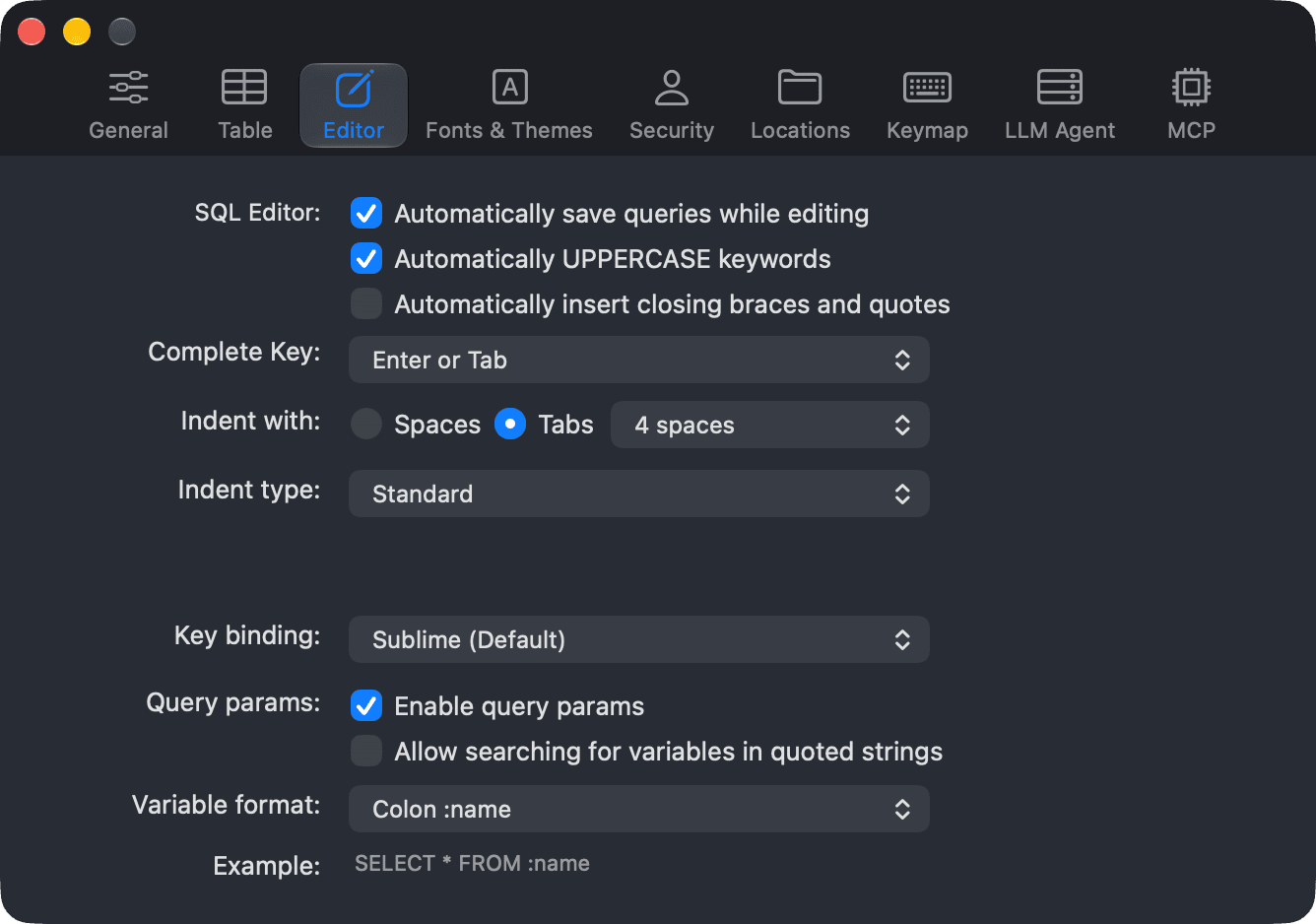
Choose Key binding > Sublime (Default) or Vim. With Vim, the editor uses Vim modes and motions. You can also change this in Preferences > Editor.
Autocomplete and query parameters
- Autocomplete options: see Autocomplete.
- Query params options: see Query Parameters.
Results
- Result view mode: show each result in its own tab (Split results into Tabs, the default) or Append all results in one Tab. See Split Results into Tabs.
- Return on Error: when you run several statements, stop at the first one that fails. Off by default, so TablePlus reports the error and runs the remaining statements.
Preferences
The Editor tab of the Preferences window has more options: the autocomplete completion key, indentation, automatic uppercase keywords and closing braces, auto save for saved queries, key binding and query parameters. See SQL Editor preferences.
-
On Windows and Linux, open Preferences with
Ctrl + ,and useCtrlinstead of⌘in the other shortcuts. ↩︎